Shipping Restrictions
Overview
In fact, shop owners often would like to limit the shipping methods based on specific condition such as the storeview, customer group, cart condition, product attributes, time limit or the compatibility with sales rules. Thanks to Mageplaza Shipping Restrictions extension, your store will be able to perform this and take full control of shipping methods and improve sales efficiency.
The Shipping Restriction module is fully compatible with Mageplaza's One Step Checkout.
How to download and install
- Download Mageplaza Shipping Restrictions
- How to Install
How to Configure Shipping Restrictions
From Admin Panel, go to Stores > Shipping Restriction > Configuration
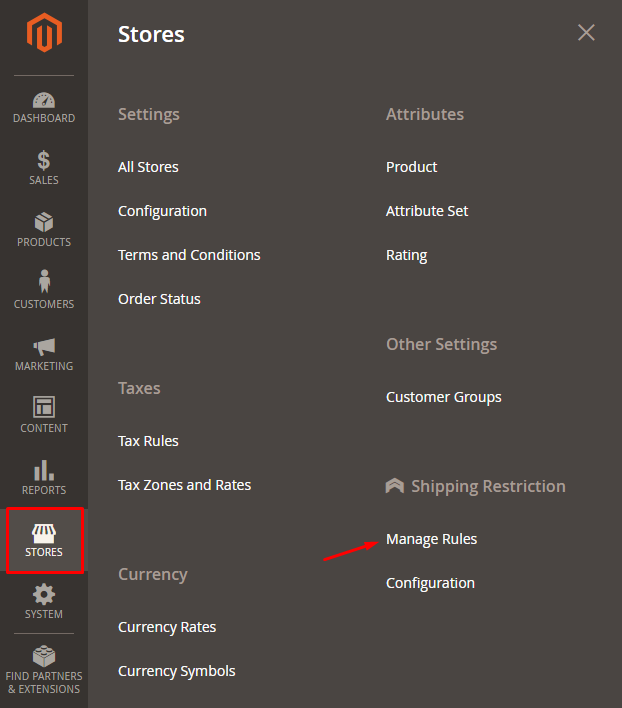
1. Configuration
From the Admin Panel, go to Stores > Shipping Restriction > Configuration, select General
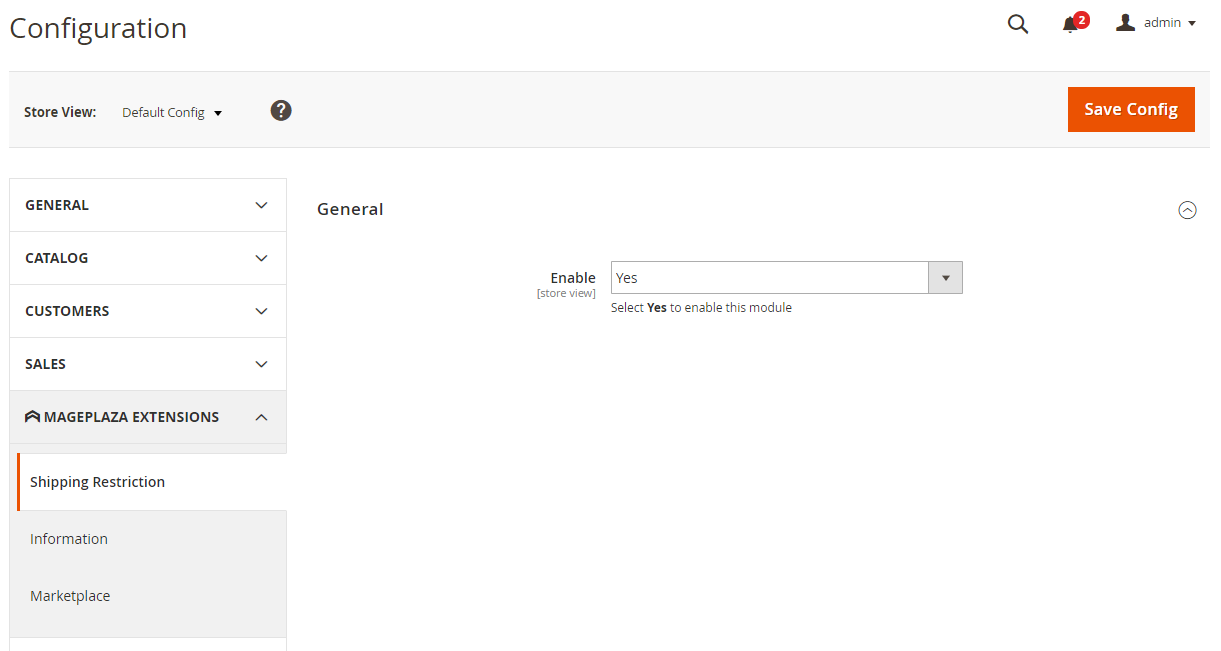
Choose Enable = Yes to turn on the module
2. Manage Rule
2.1. Grid
- From the Admin Panel, go to
Stores > Shipping Restriction > Manage Rules
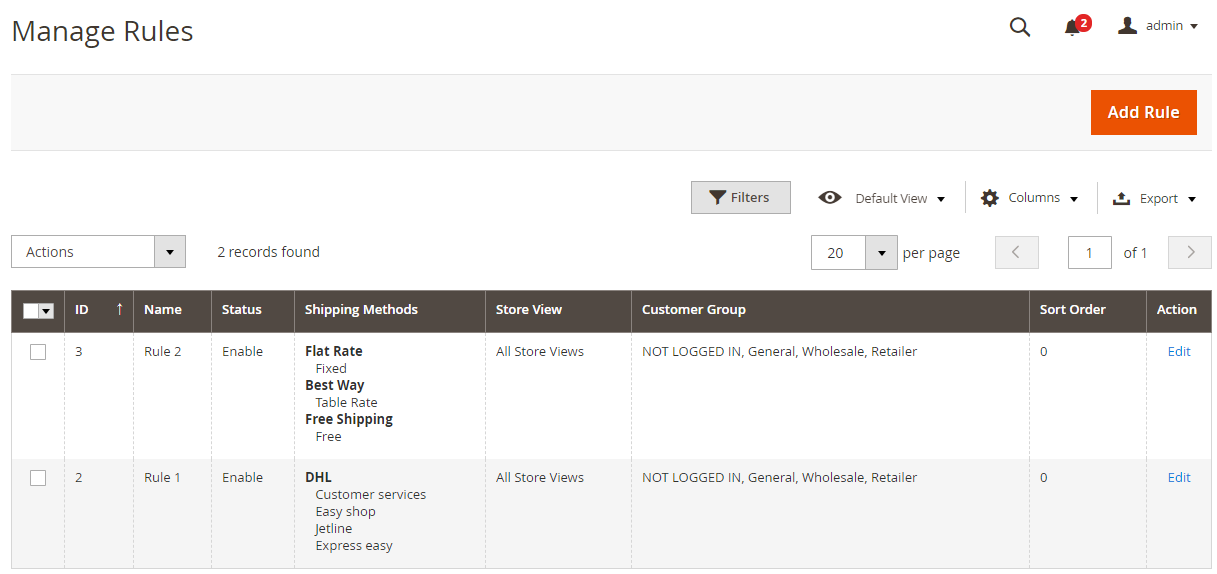
From Manage Rules, admin can capture basic information such as ID, Name, Status, Method, Store View, Customer Groups, Sort Order, Action.
Action:
- Delete: Select the rule you want to delete
- Change Status: Change the status of the selected rules
- Edit: Navigate to the edit page of the rules created before
Also, admin can Filter, Change Store view, Hide/Show Columns.
2.2. Create New Rule
From the Admin Panel, go to Stores > Shipping Restriction > Manage Rules, select Add new
2.2.1. General
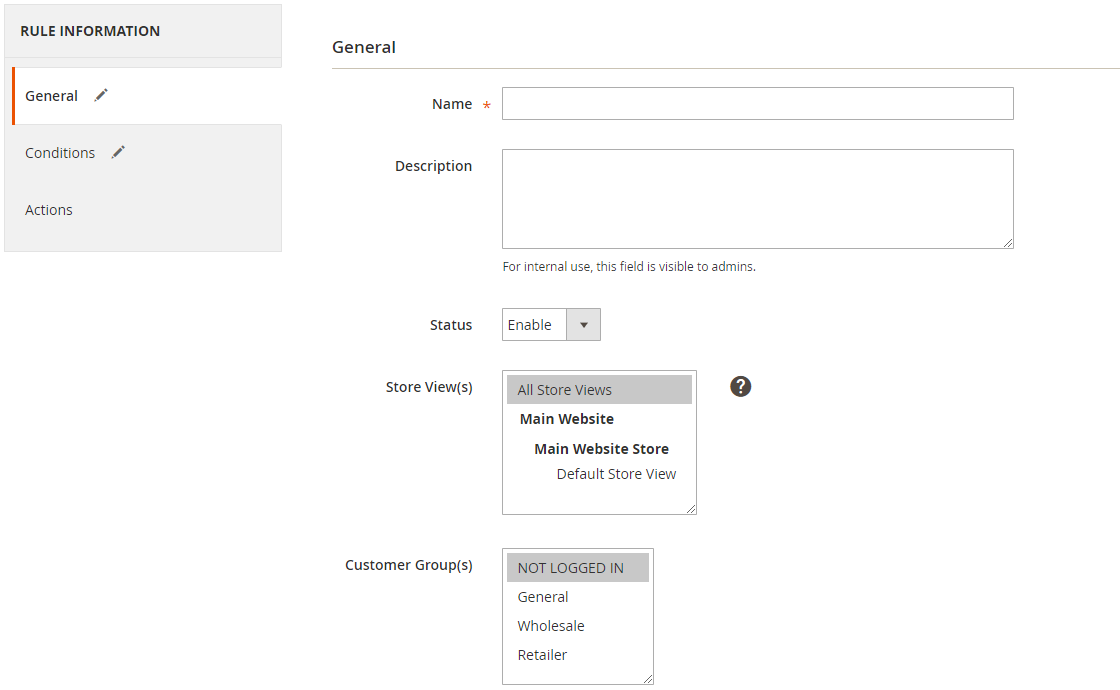
Name: Name the rule, which is the required field.
Description: Enter the description for the rule.
Status: Select Enabl to allow the rule to be applied.
Store View(s):
- Select store view. Only apply rules for products on selected stores.
- Many store views can be selected at the same time to display the rule.
Customer Group(s): Select one or more customer groups at the same time to use the rule. Non-selected customer groups will not apply the rule.
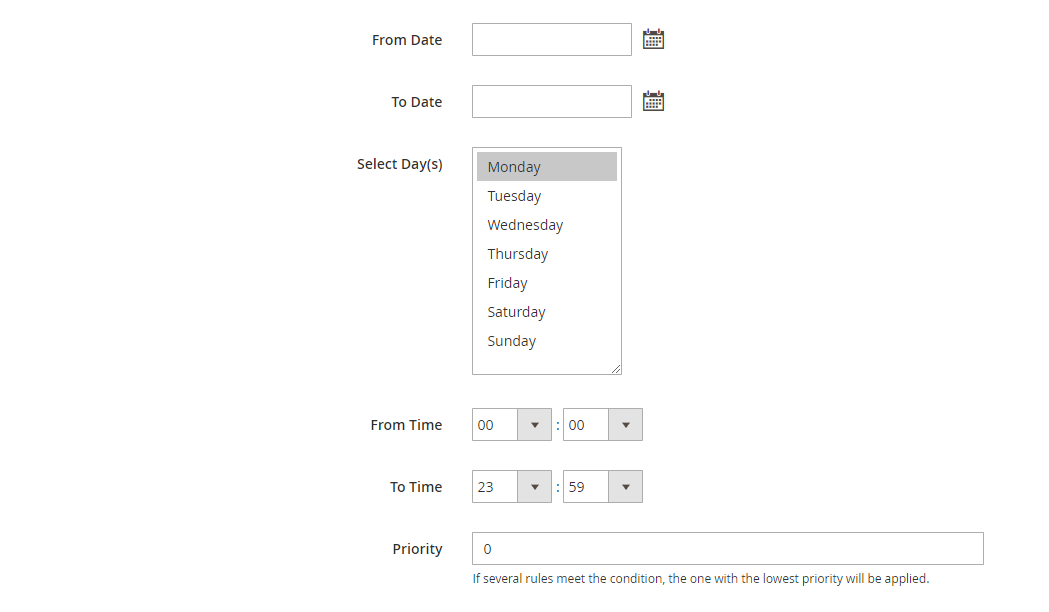
From: Click on the calendar icon to select the date/month/year. The rule will start from the date/month/year you selected.
To: Click the calendar icon to select the date/month/year to complete the rule application.
Select Day (s): Select the days of the week. The rule will be applied to the days of the week with the date/month/year you selected. The remaining days will not apply the rule.
Time from:
- Select the time of day to start applying the rule.
- For countries located in different time zones, they will be applied according to the time selected for those countries. For example: Vietnam is in GMT +7, US in GMT -5. Time from 8 am, so 8 am in Vietnam and 8 am in the US will begin to apply the rule when customers buy goods.
Time to:
- Choose the time of day. The rule will end at the time you selected.
- For countries located in different time zones, they will be applied according to the time selected for those countries. For example: Vietnam is in GMT +7, US in GMT -5. The end time is 19h in Vietnam and 19h in the US will not apply the rule when customers buy goods.
Priority:
- Enter the priority for the rule.
- The smaller the number of priority rules, the higher the priority. 0 is the highest priority.
2.2.2. Conditions
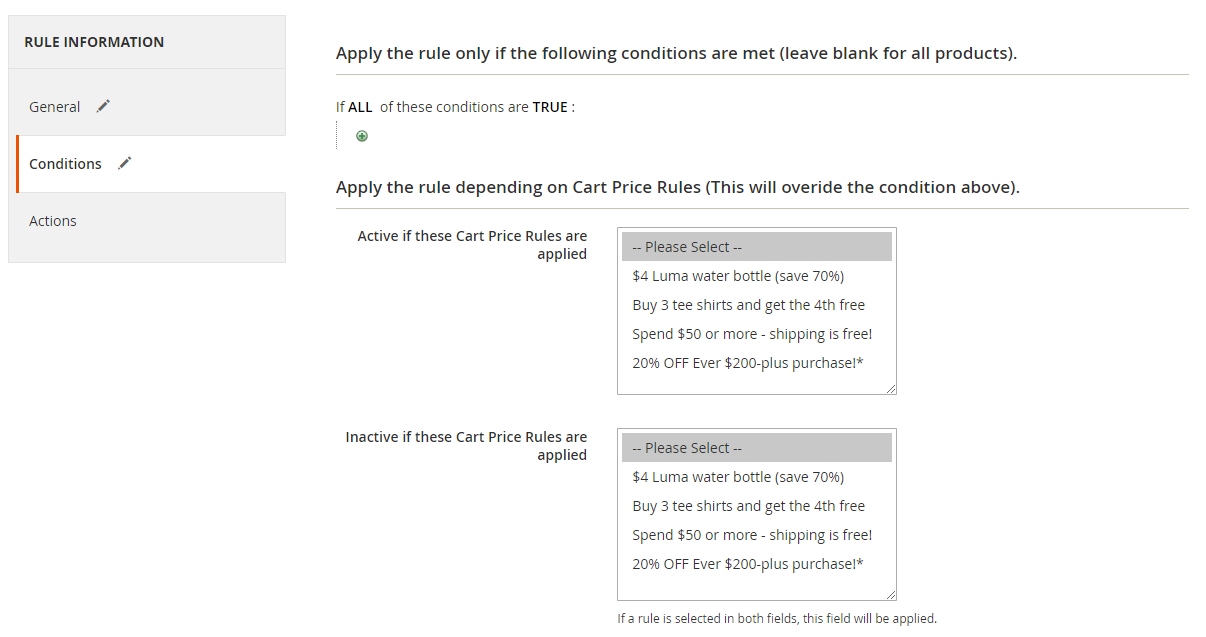
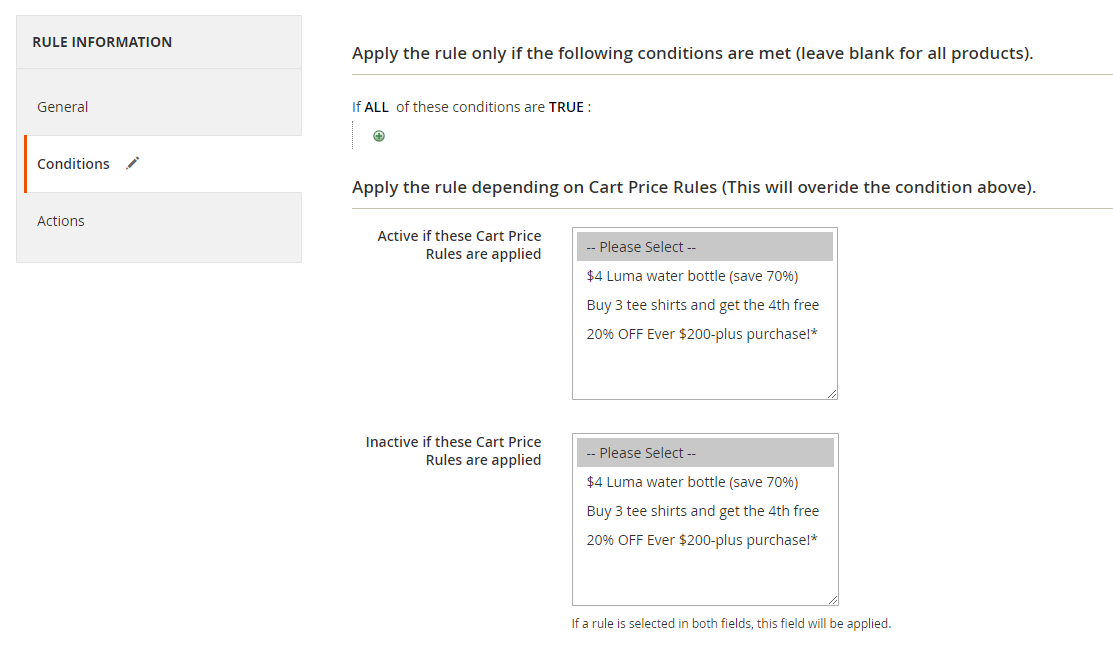
- Apply the rule only if the following conditions are met (leave blank for all products)
Set conditions to apply the rule. All products that meet the conditions will be applied with the rule.
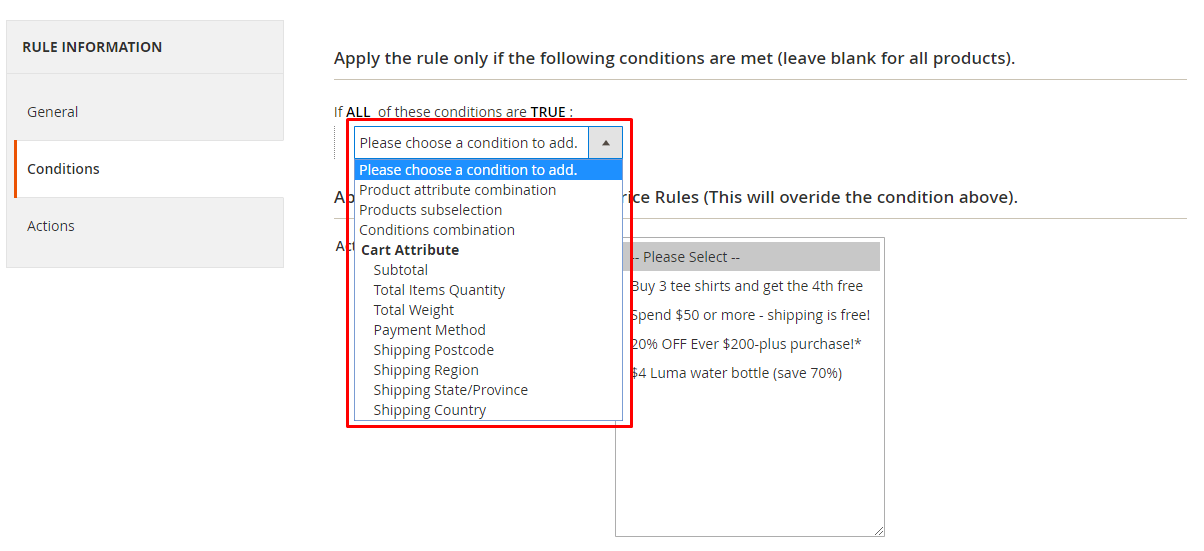
Apply the rule depending on Cart Price Rules (This will override the conditions above)
Active if these Cart Price Rules are applied:
- Select the rule created in Cart Price Rules to activate the Shipping rule.
- Many rules can be selected at the same time.
- If a customer uses a coupon or their purchase meets the conditions of the rule selected in the Cart Price Rules, this rule will be applied to Shipping without checking the applicable conditions of the above option.
Inactive if these Cart Price Rules are applied:
- Select the rule created in Cart Price Rules to activate the Shipping rule.
- Many rules can be selected at the same time.
- If a customer uses a coupon or their purchase meets the conditions of the rule selected in the Cart Price Rules, this rule will not be applied to Shipping without checking the applicable conditions of the above option.
- If one or more rules are selected at the same time in both Active if these Cart Price Rules are applied and Inactive if these Cart Price Rules are applied, system will prioritizely check the rule in Inactive if these Cart Price Rules are applied first then check Active if these Cart Price Rules are applied.
2.2.3. Actions
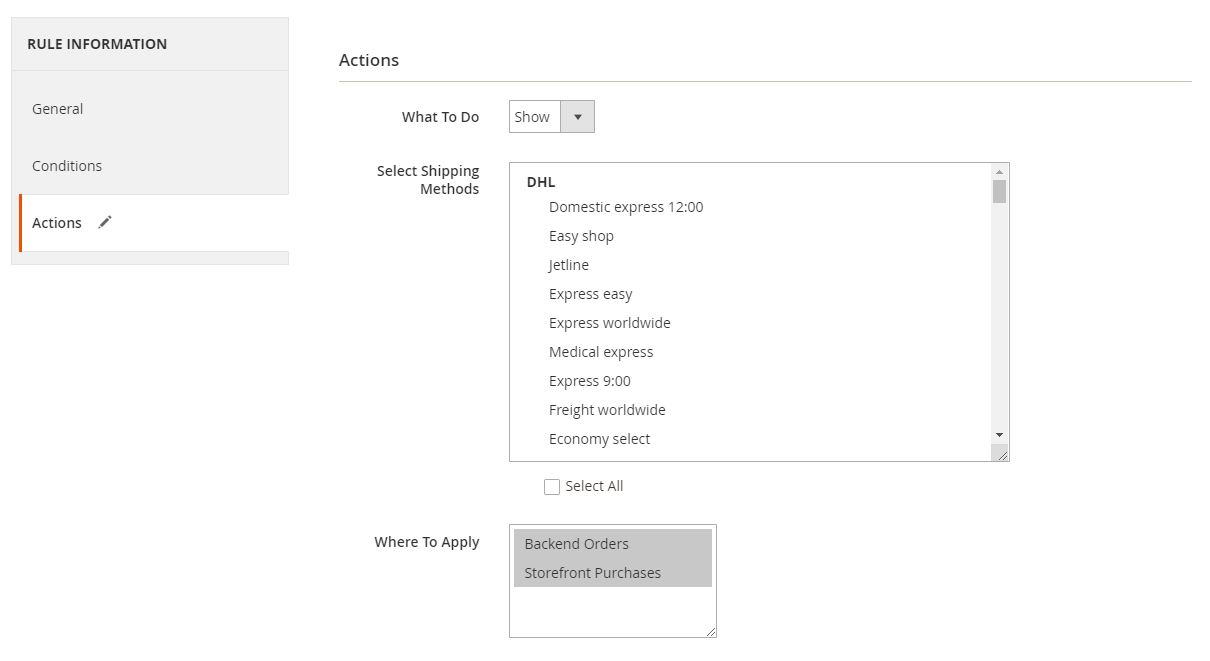
- What To Do:
- Show: Show the chosen shipping methods
- Hide: Hide the chosen shipping methods
- Select Shipping Methods: Select the shipping method to apply the rule. You can choose multiple or all shipping methods to show/hide them all.
- Action: Select Show to display the selected shipping method.
- Location: Select the location to apply the rule on:
- Backend Order
- Frontend Order
- Where To Apply: Select the place to apply the rule on:
- Orders Backend
- Storefront Purchases
- Note: If you want to hide/show Shipping Rule in holidays, please go back to setup the date/month you want to hide/show it. And noted to set Priority at the lowest number to get the highest priority.
How to configure Shipping Rules
From the Admin Panel, go to Sales > Shipping Rules > Configuration
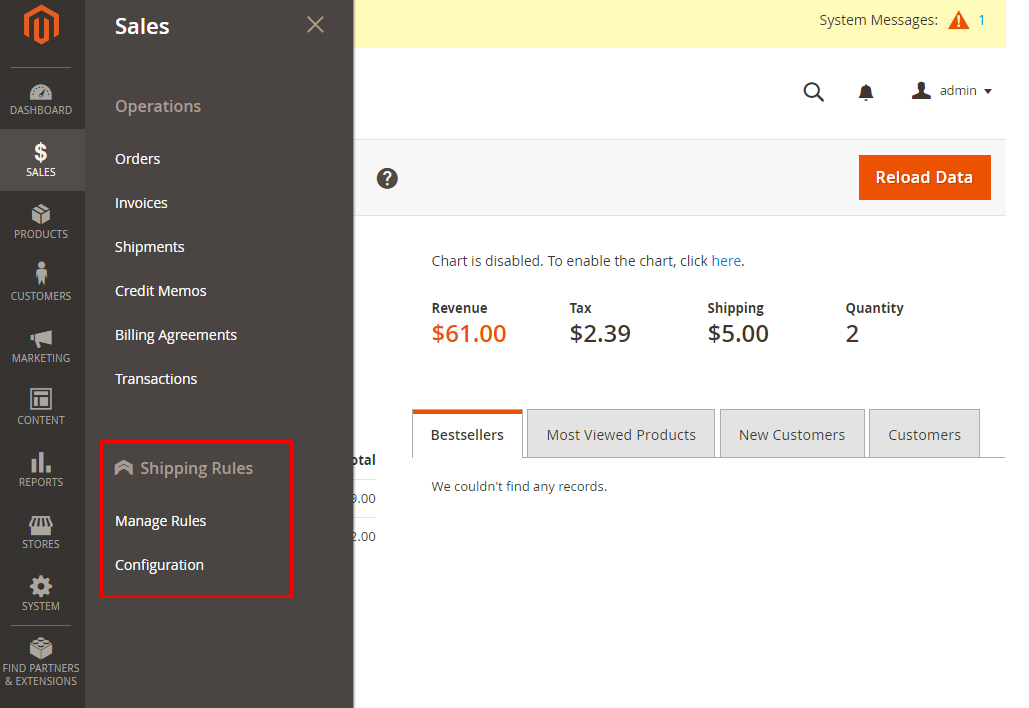
1. Configuration
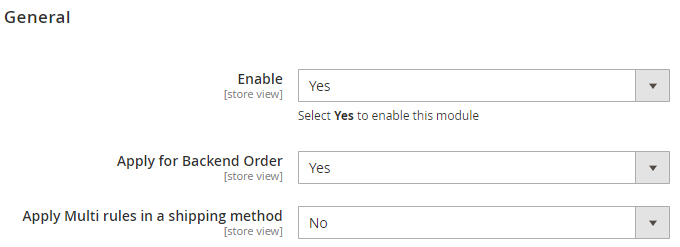
General
- Enable: Choose Yes to use the features of this module
- Apply for Backend Order: Choose Yes to apply the rule when admins create a new order
- Apply Multi rules in a shipping method: Choose Yes to apply multiple rules for shipping method
2. Manage Rules
How to add a new rules
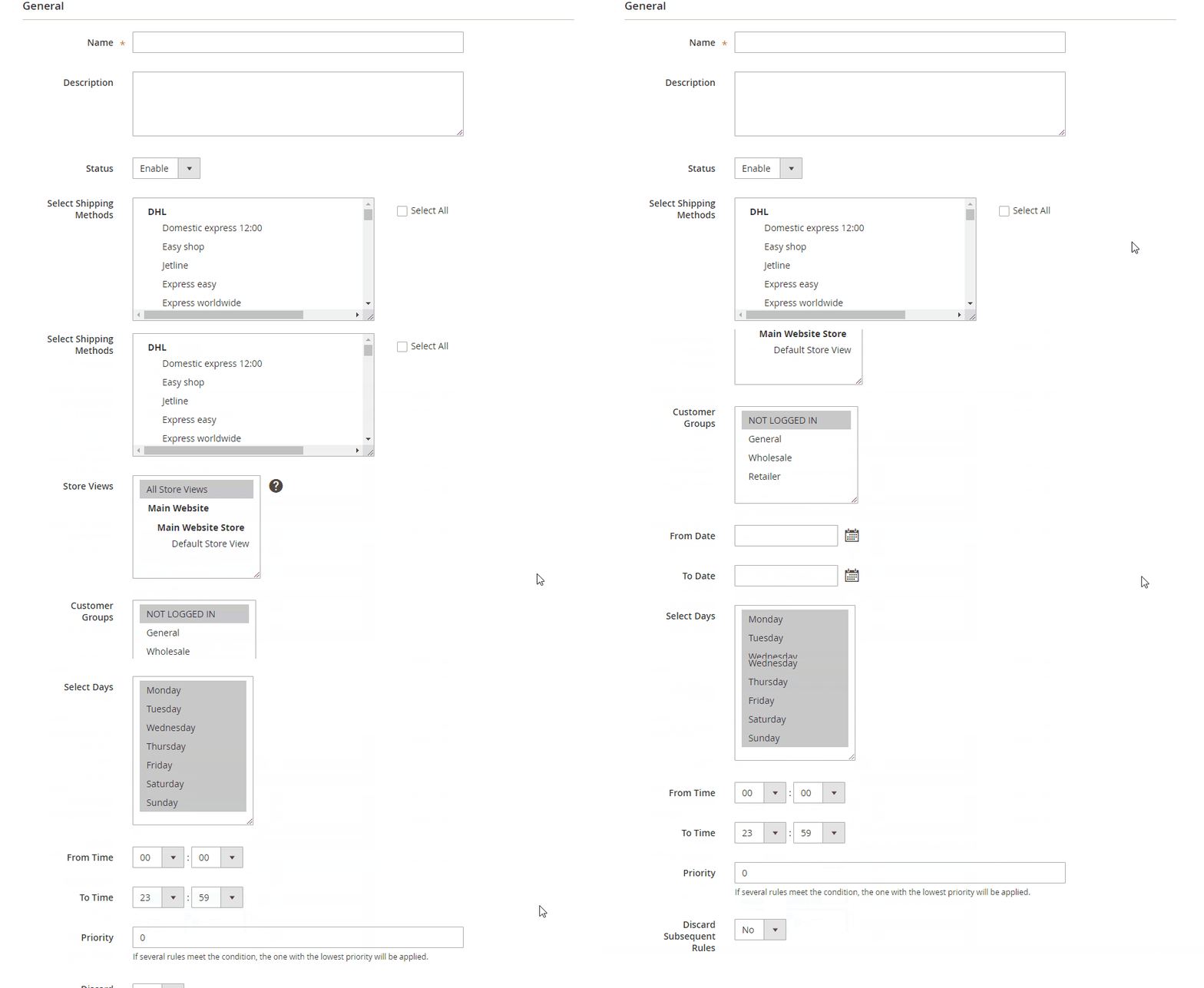
- Step 1: Enter the full General information
- Step 2: Set the conditions to apply the rule in the
Conditionssection - Step 3: Set up shipment calculation in
Actionssection
Step 1: Enter the full General information
Name: Enter the name of the rule
Description: Enter a description for the rule
Status: Select "Enable" to apply the rule
Select Shipping Methods
- Select the delivery method
- You can choose from a variety of delivery methods
Store Views
- Only the products in the selected store will be applied the rule
- Multiple stores can be selected at the same time
Customer Groups
- Apply the rule to the customers of the selected group
- Multiple groups can be selected at the same time
From: Choose the date/month/year to start applying the rule
To: Select the date/month/year to end applying the rule
Select Days
- Select the day of the week to apply the rule
- Multiple dates can be selected at the same time
Time From
- Select the hours of the day to start applying the rule
- For countries located in different time zones, they will apply according to the hours configured for those countries. For example: Viet Nam is in GMT +7. America is in GMT -5. Time From is 8:00 AM, then 8:00 AM of Vietnam and 8:00 AM of America will start applying the rule when there are buyers.
Time To:
- Select the hours of the day to finish applying the rule
- For countries located in different time zones, they will apply according to the hours configured for those countries. For example: Viet Nam is in GMT +7. America is in GMT -5. Time From is 17:00 PM, then 17:00 PM of Vietnam and 17:00 PM of America will not apply the rule when there are buyers.
Priority - Enter the priority for synchronizing objects
- The smaller the number, the higher the priority
- For rules with equal priority, the priority will be based on what rules are created first.
Discard Subsequent Rules: Choose Yes to discard the application of rules with lower priority. For example, the priority of the first rule = 1 while that of the second rule = 2. If in the first rule Discard Subsequent Rules = Yes, only the first one will be applied.
Step 2: Set the conditions to apply the rule in the Conditions section
Select conditions to apply the rule
You can set the conditions for Cart or Product section as Subtotal greater than 50, Total Items Quantity less than 5, etc
The condition to apply Shipping Rules will depend on
Cart Price Rules.Active if Cart Price Rules applied
- Select the created rule in the
Cart Price Rulesto activate the rule for shipping - Multiple rules can be selected at the same time
- If the customers use a coupon or purchase and satisfy the conditions of the selected rule in the
Cart Price Rules, this rule will be applied to shipping without checking the applicable conditions of the selection above.
- Select the created rule in the
Inactive if Cart Price Rules applied
- Select the created rule in the
Cart Price Rulesto activate the rule for shipping - Multiple rules can be selected at the same time
- If the customers use a coupon or purchase and satisfy the conditions of the selected rule in the
Cart Price Rules, this shipping rule will not apply without checking the applicable conditions of the selection above. - If one or more rules is selected in the
Active if Cart Price Rules appliedfields andInactive if Cart Price Rules appliedfields, theInactive if Cart Price Rules appliedfield will be checked based on theInactive if Cart Price Rules applied
- Select the created rule in the
Step 3: Set up shipment calculation in Actions section
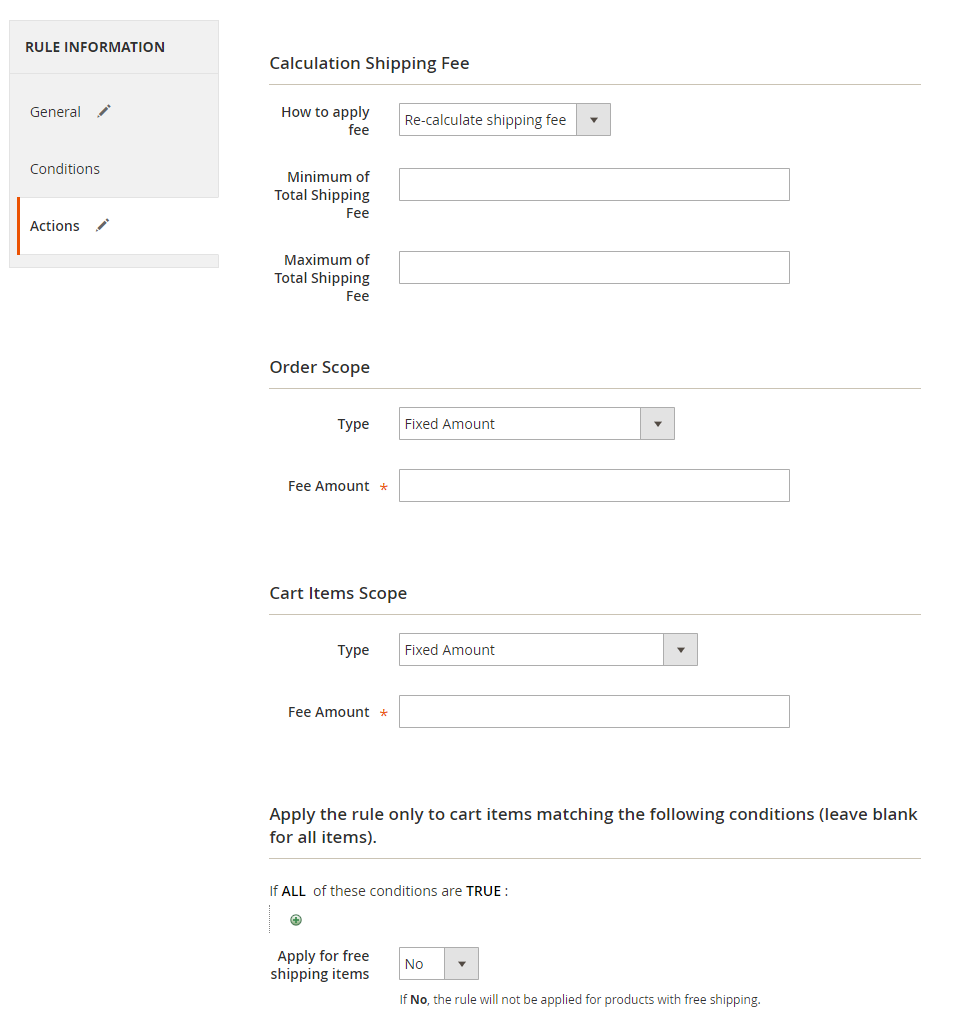
Configure Calculation Shipping Fee
- How to apply fee
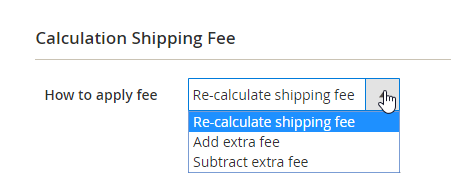
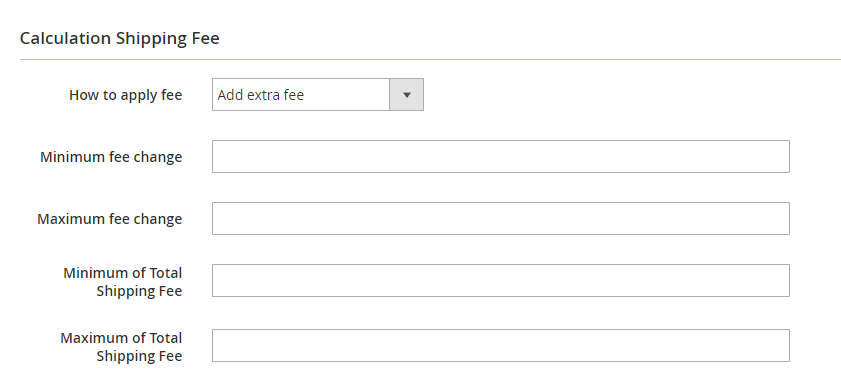
How to apply fee = Re-calculate shipping fee: Replace the old shipping fee calculationHow to apply fee = Add extra fee: Add the extra fee for the shipping- Minimal fee change: Enter the minimum change fee
- Maximal fee change: Enter the maximum change fee
How to apply fee = Subtract extra fee: Discount the shipping surcharge- Minimal fee change: Enter the minimum change fee
- Maximal fee change: Enter the maximum change fee
- For example: Admins configure
Minimal fee changeis $5. After calculating the shipping fee will be $20. Original shipping fee is $10. The actual shipping fee will be $10 + $5 (ifHow to apply fee = Add extra fee) or $10 - $5 (ifHow to apply fee = Subtract extra fee). It's the same as withMaximal fee change
Minimal of Total Shipping Fee: Enter the minimum shipping charge that the customers must payMaximal of Total Shipping Fee: Enter the maximum shipping charge that the customers will pay- For example: Admins configure
Minimal of Total Shipping Feeis $15. After calculating the shipping fee will be $12. The actual shipping fee will be $15. Similar to theMaximal of Total Shipping Fee, the Maximal of Total Shipping Fee is $25. After calculating the shipping fee is 30. The actual shipping fee will be $25.
- For example: Admins configure
Configure Order Scope: Shipping fee is calculated for the Order
- Type
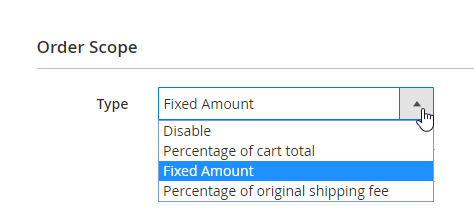
Type = Disable: The shipping fee is not calculated for the OrderType = Fixed Amount: The shipping fee is a fixed amount per orderType = Percentage of original shipping fee: The shipping fee is the percentage of the original shipping fee. For example, you fill in 5%, the original shipment fee is $20, so the shipping fee is $1 (if the configuration of theHow to apply fee = Re-calculate shipping fee)Type = Percentage of cart total: Shipping fee is the percentage of total amount. For example: you fill in 5%, cart total is $200, so shipment fee is $10 (if configuration ofHow to apply fee = Re-calculate shipping fee)Cart Total includes:Cart Total includes = Tax: Shipping fee is calculated based on the total amount of the purchase including TaxCart Total includes = Discount: Shipping fee is calculated based on the total purchase amount after discount- Cart Total can be selected including Tax and Discount
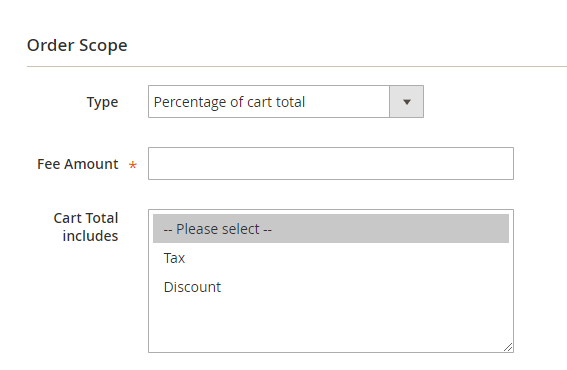
Fee Amount
- Enter fixed shipment or percentage to charge ship
- This field is not empty
Configure Cart Items Scope:
- Type
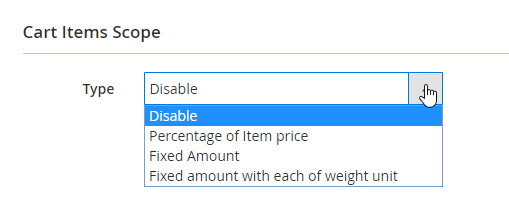
Type = Disable: The shipping fee is not calculated for each productType = Fixed Amount: The shipping fee is a fixed amount per each orderType = Fixed amount with each of weight unit: Shipping fee is calculated as a certain amount per unit weight. For example: you fill in $5, weight of item is 2kg, so shipping fee is $10 (if configuration ofHow to apply fee = Re-calculate shipping fee)Type = Percentage of cart total: Shipping fee is the percentage of total amount. For example: you fill in 5%, cart total is $200, so shipping fee is $10 (if configuration ofHow to apply fee = Re-calculate shipping fee)Item price includes
Item price includes = Tax: Shipment fee is based on the price of each product included TaxItem price includes = Discount: Ship charges are calculated based on the price of each item after discount- You can choose the price of each product including Tax and Discount
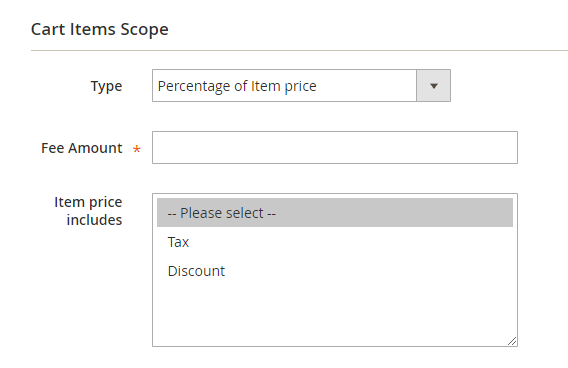
Fee Amount
- Enter fixed shipment or percentage to charge ship
- You are not allowed leaving this field blank
Select the conditions for applying the rule to each product. Only when you purchase the selected products here, shipping fee is applied for each product. You can see the selected products in the
PREVIEW PRODUCTSsectionApply for free shipping items- Select Yes to apply the rule to the products that are shipped free if the selected products are also in the same rule and that rule has a free shipping configuration when purchasing these products.
3. Compatible with Mageplaza One Step Checkout
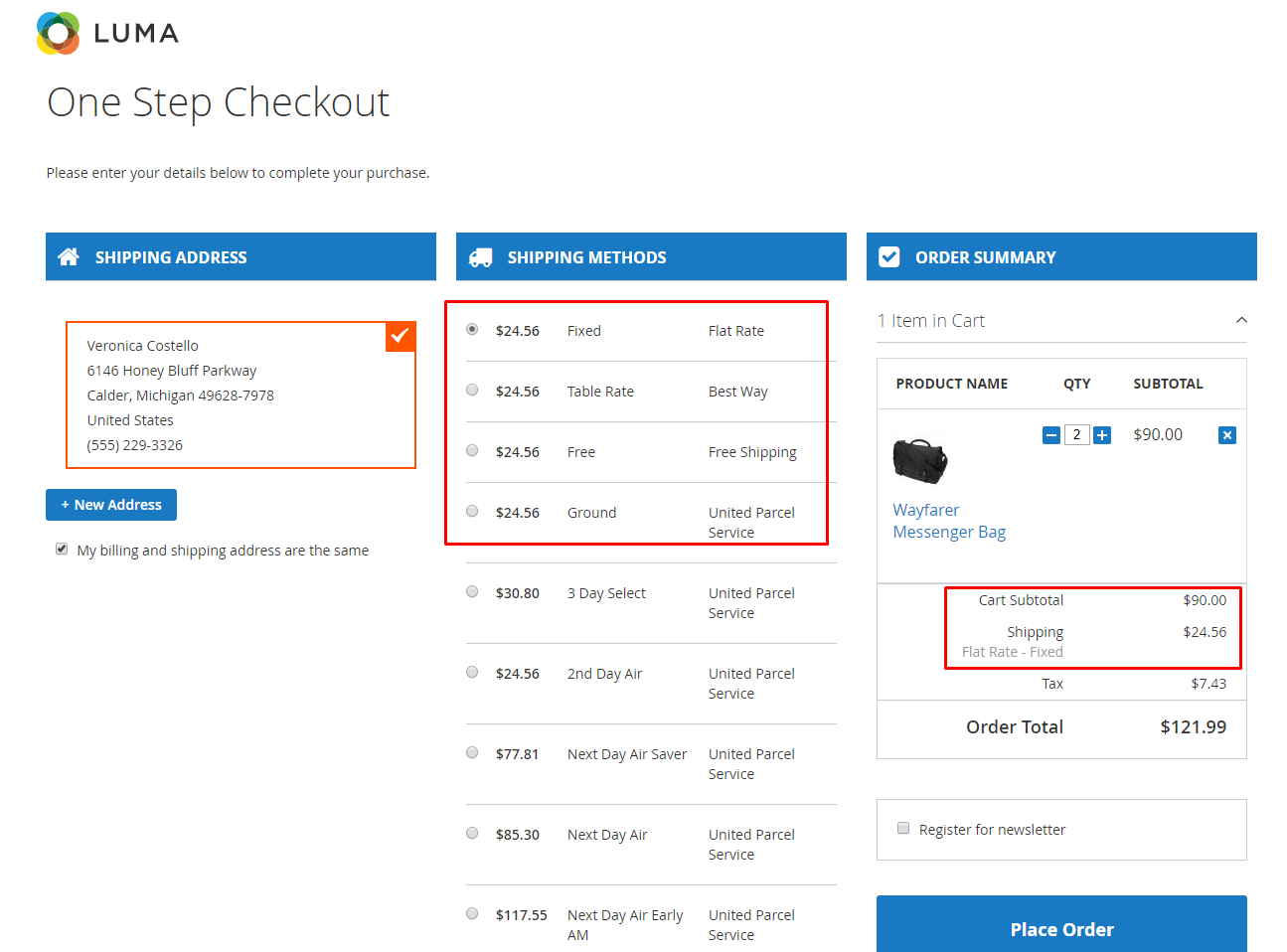
Frontend & Backend
- The rule is applied on the frontend
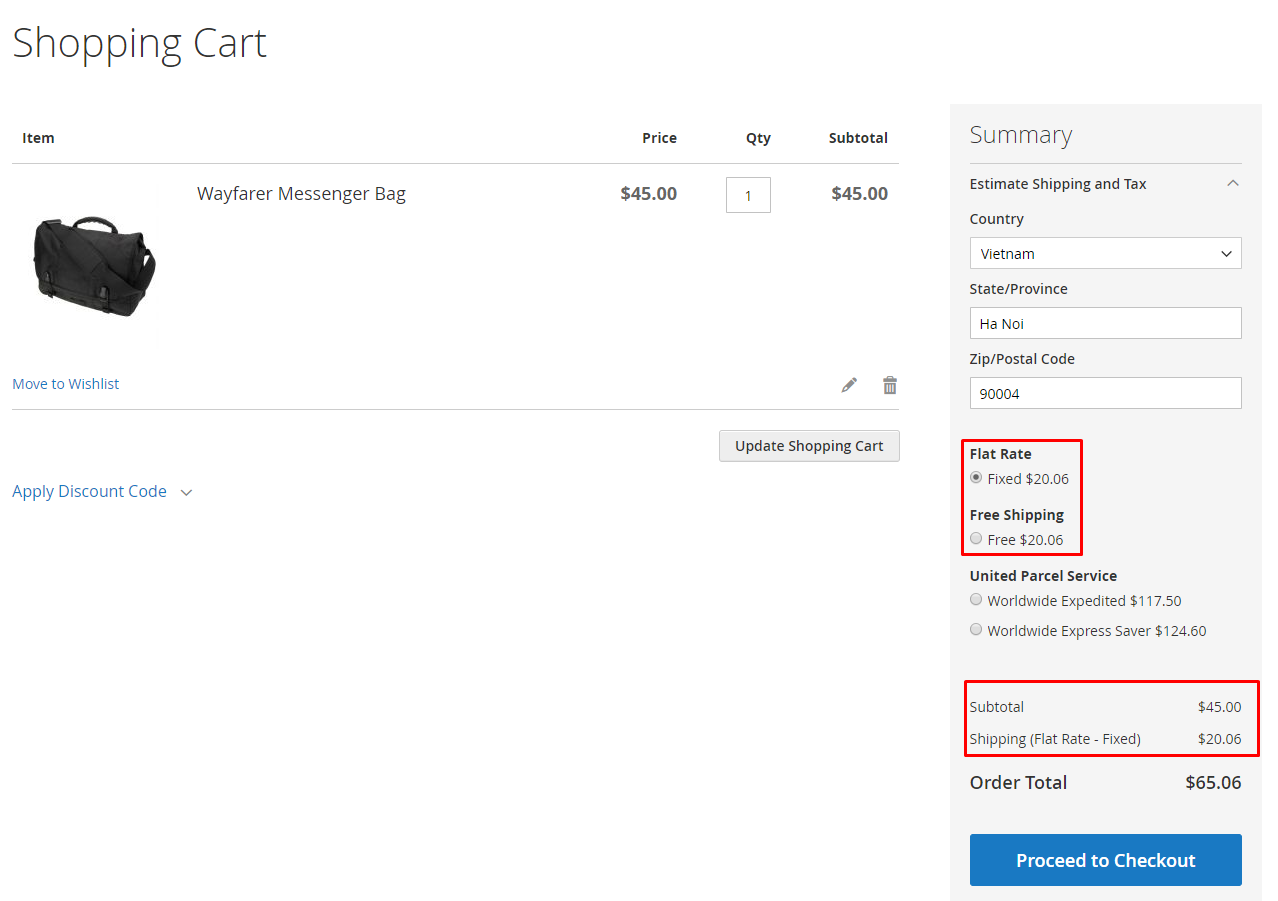
- The rule is apllied in the backend