Better Wishlist
Overview
Customers tend to save their favorite products on a Wishlist to review and buy later. However, it is difficult to manage your favorite products when they are focused on one wish list and cannot be categorized, thereby making the customer experience worse. Mageplaza Better Wishlist will solve this problem. This module will help customers easily create and update various WishList in accordance with different purchase needs. Thanks to this extension, customers can apply a range of actions to their wishlists such as delete/ move/ share them. Moreover, the module reports the most concerned and most recently added products in Wishlists, which helps stores improve sales and increase loyal customers quickly by capturing their needs and shopping trends.
How to download and install
How to use
1. Customer
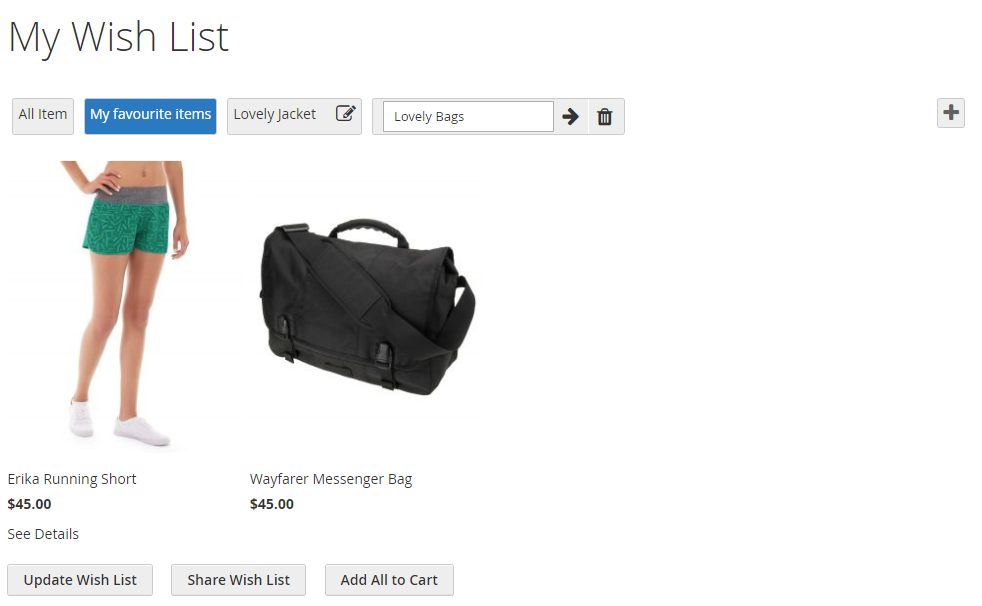
- Customers can create/update multiple Wish Lists
- Also, they can copy/move products between Wish Lists
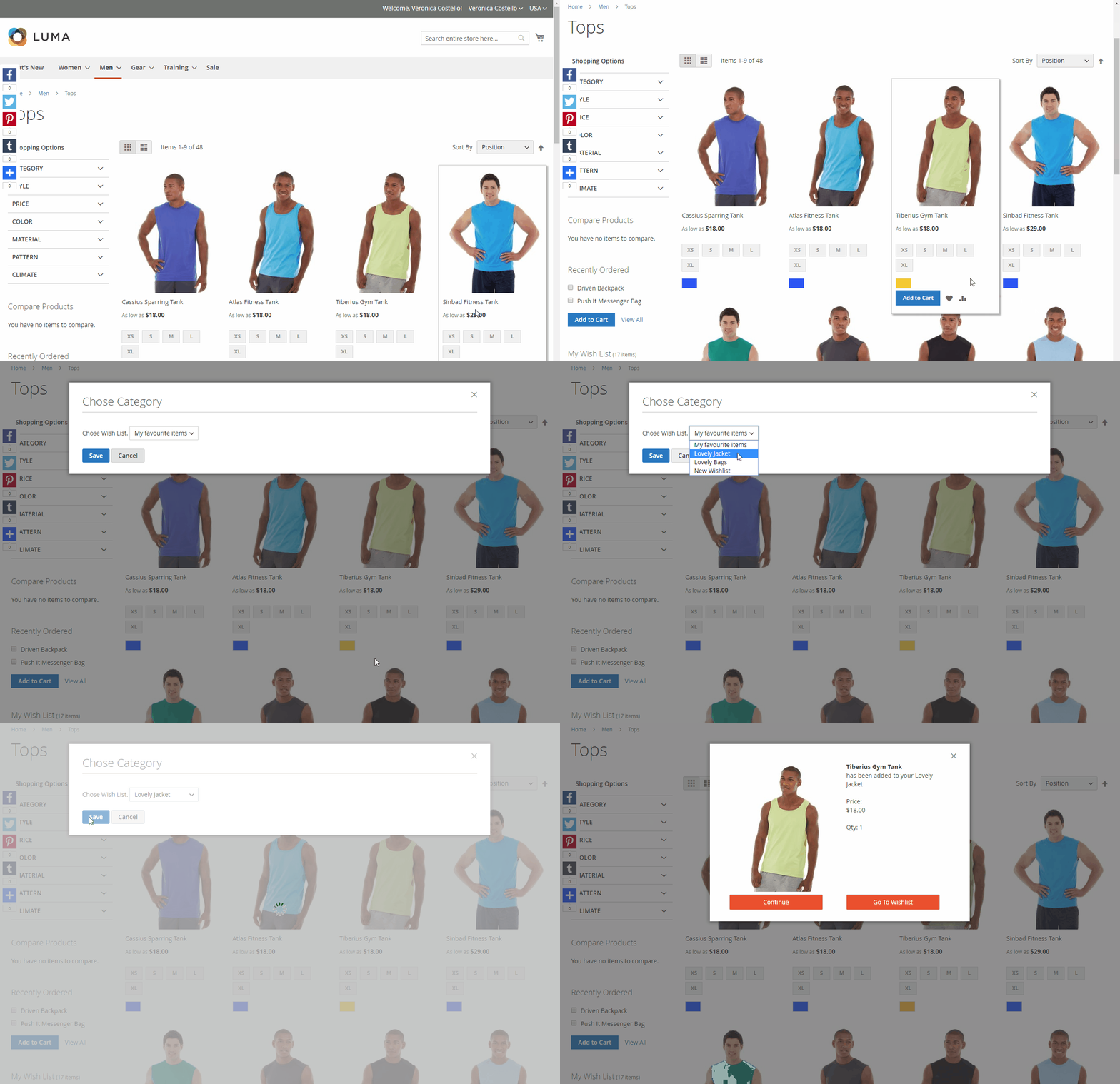
- Add one product to different Wish Lists (Quick View compatible)
2. Admin
- Admin can view and edit the Wish List of each customer
- Have statistics of product quantity added to Wishlist (compatible with Mageplaza Reports)
How to Configure Wishlists
1. Configuration
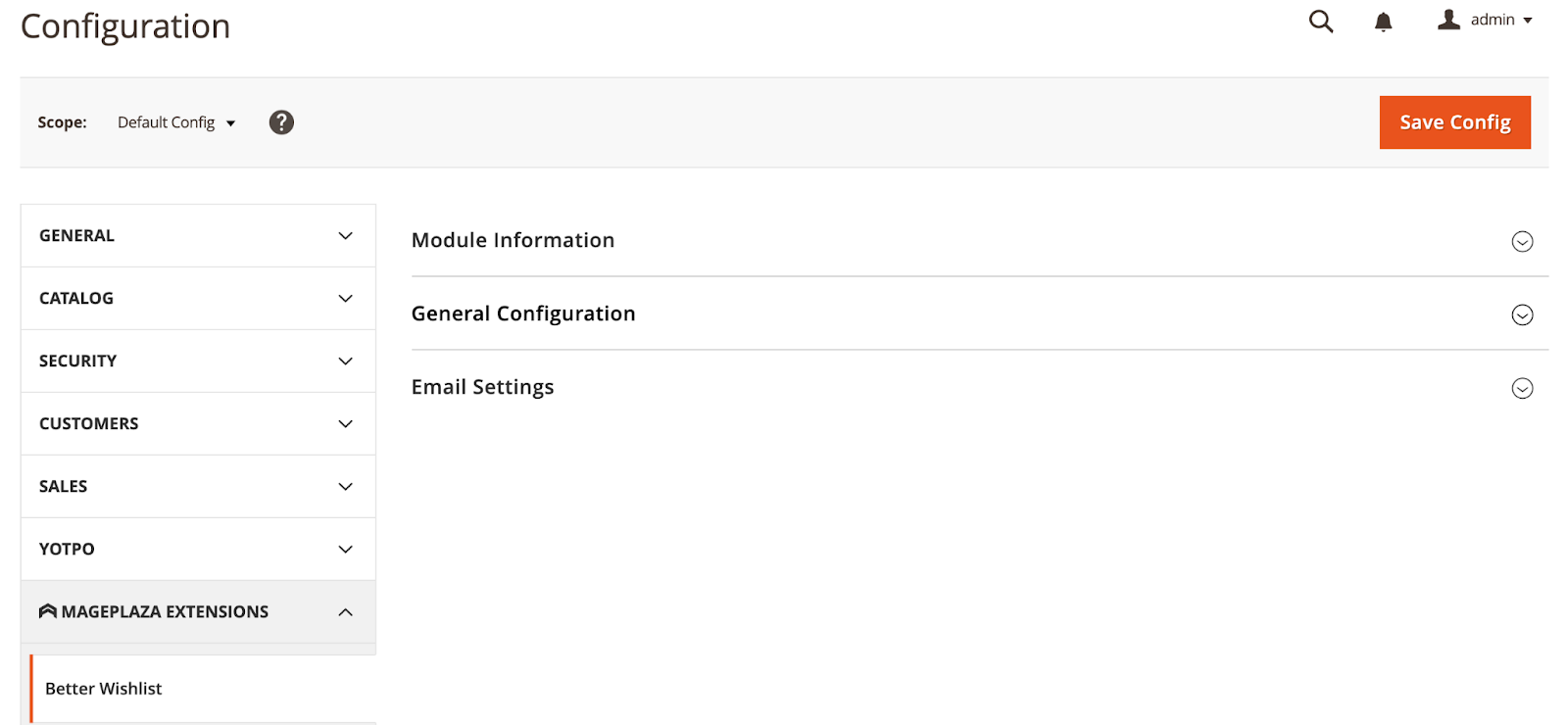
From the Admin panel, go to Stores> Configuration> Mageplaza> Better Wishlist
1.1 General Configuration
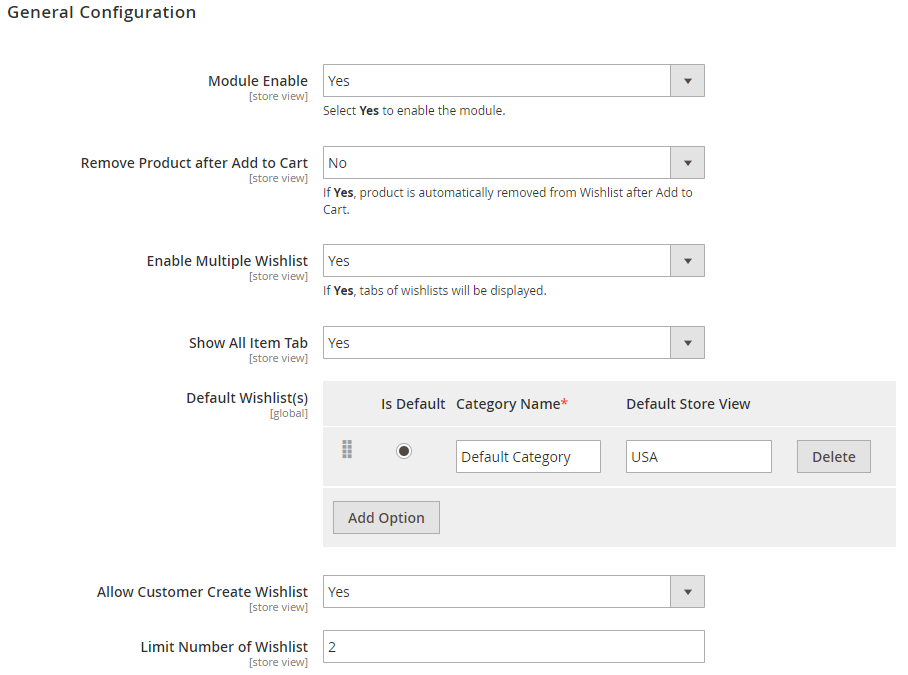
Enable: Select
Yesto turn on the module.Remove Products after Add to Cart: Select
Yesto automatically delete the product from the Wishlist after Add to cart.Enable Multiple Wishlists:
- Choose
Yesso the admin can configure some settings on multiple wishlists, including Show All Item Tab, Default Wishlist(s), Allow customers to create Wishlists. - Show All Item Tab: Select
Yesto display a tab containing all products on the Wishlists.
- Choose
Default Wishlist(s):
- Add and delete the Wishlist Categories displayed by default in Wishlists.
- Customer cannot change the names of these Wishlist Categories
Allow customers to create Wishlists:
- Select
Yesto allow customers to create a Wishlist Category. - Show more Limit Number fields of Wishlists created by customers to limit the number of wishlist categories created by customers.
- If you leave it blank or enter 0, then the default number of wishlist customers created is 5.
- For admins, they can create numerous Wishlists without being affected by Limit Number of Wishlists created by customers.
- Select
2. Edit Wishlist of Customer
- Each Wishlist Category and each Product added to the wishlist is saved in the Wishlist tab at the backend Customer details page. To edit them, admins can go to
Customers> All Customers
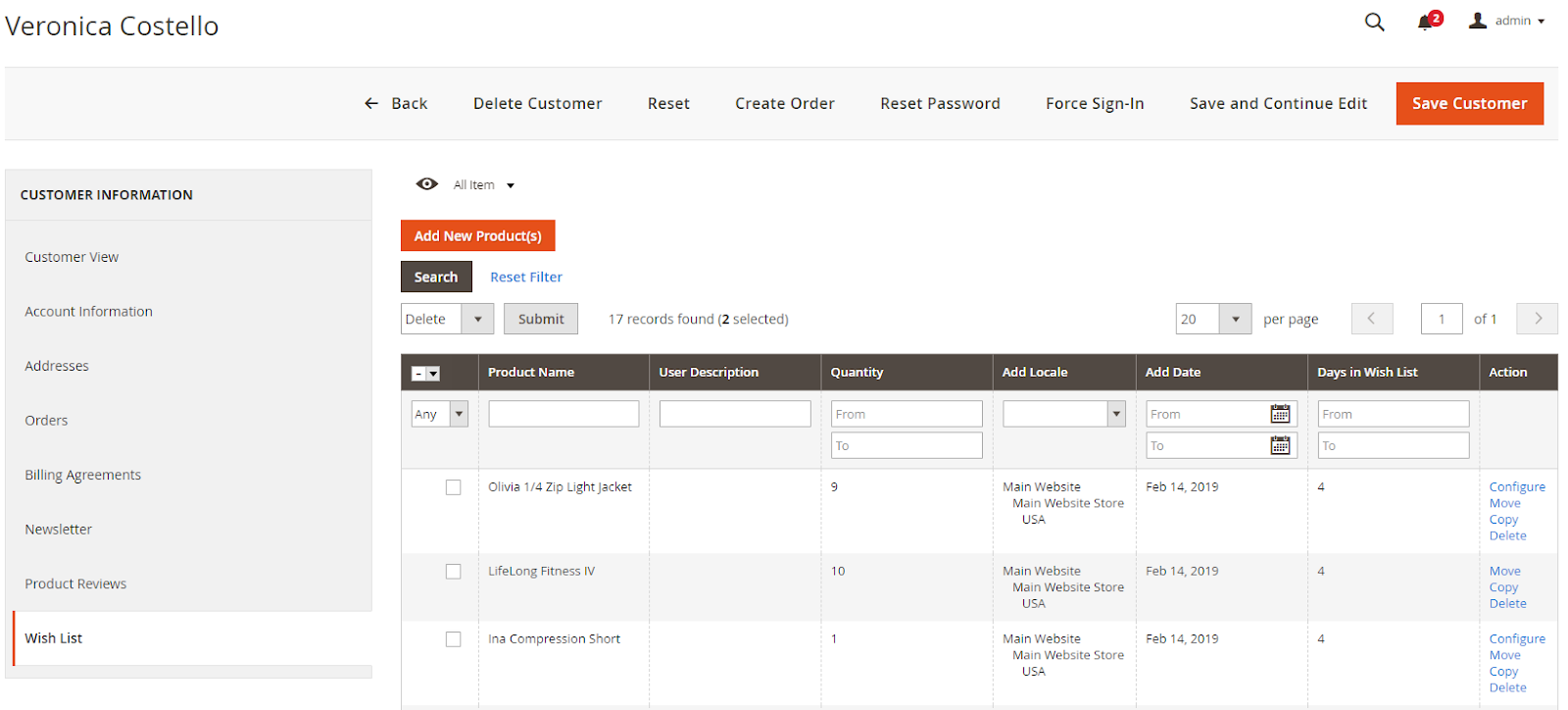
- Admin can do the following actions:
- Create or rename the Wishlist Category
- Add products to any Wishlist Category
- Make a copy, move one product from this Wishlist Category to another Wishlist Category
- Remove Product from Wishlist Category
- Change the color and size of Configurable products
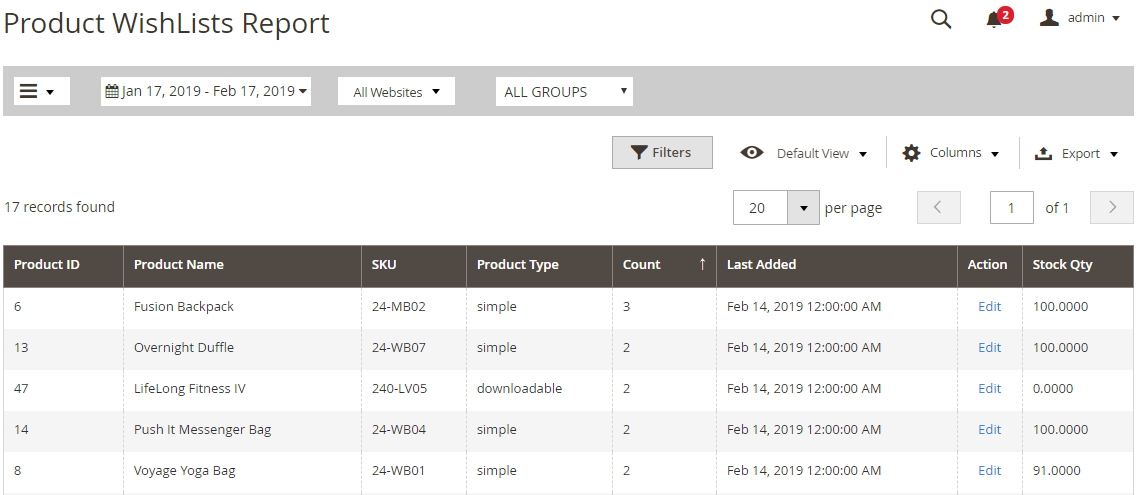
3. Report on number of customers who have added wishlist for each Product
- From the Admin panel, go to
Reports> Better Wishlist> Wishlist Report
4. API
Mageplaza Better Wishlist supports using REST API to perform certain actions: getting wishlist categories, creating new wishlist categories, adding items to categories, etc. Find more details of available requests in this page.
How to Configure Save Cart
1. Configuration
From the Admin Panel, go to Stores > Configuration > Mageplaza Extensions > Save Cart And Buy Later > General Configuration
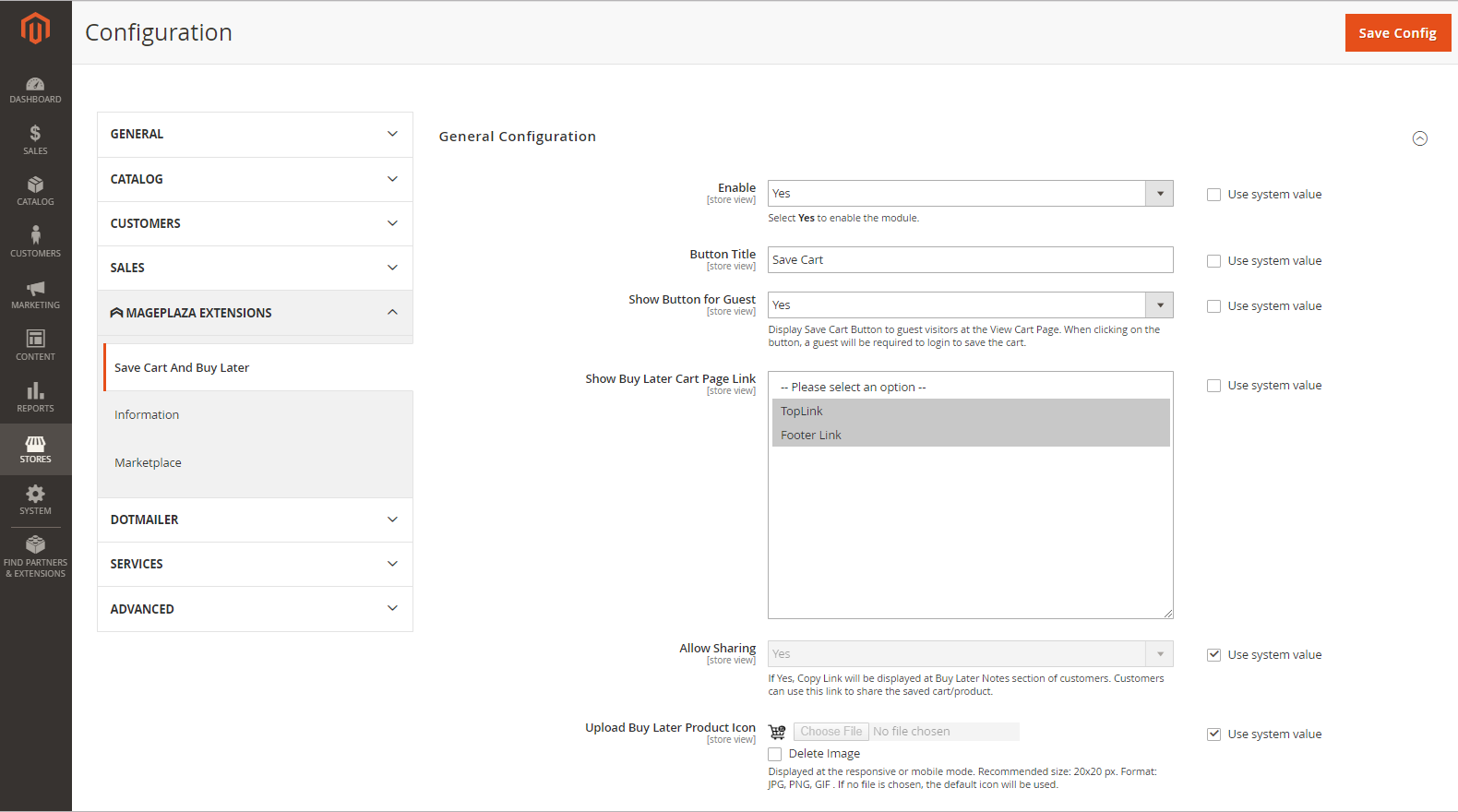
- Enable: Select Yes to turn on the module
- Button Title: Set a title for the button which the customer will click to use this feature. Leaving this field blank will receive the default value which is Save Cart.
- Show Button for Guest: By clicking to this button, Guest customers will be asked to login so that they can save their cart.
- Select Yes to allow this button to be shown for Guest.
- Otherwise, select No.
- Show Buy Later Cart Page Link: Select the position to display the link to Buy Later Cart. There are 2 positions that are Top Link and Footer Link.
- Allow Sharing:
- Select Yes to allow customers to copy this link and share Buy Later Cart to others. When customer accesses the link shared, Cart/ Product saved at the link will be automatically added to the new cart
- Otherwise, select No.
- Upload Buy Later Product Icon: This feature allows you to select icon to replace for "Buy Product Later" phrase when your website is at "Responsive" or "Mobile mode"
2. Edit Customer Form
From the Admin Panel, go to Customers > All Customers > Edit Customers > Buy Later Notes
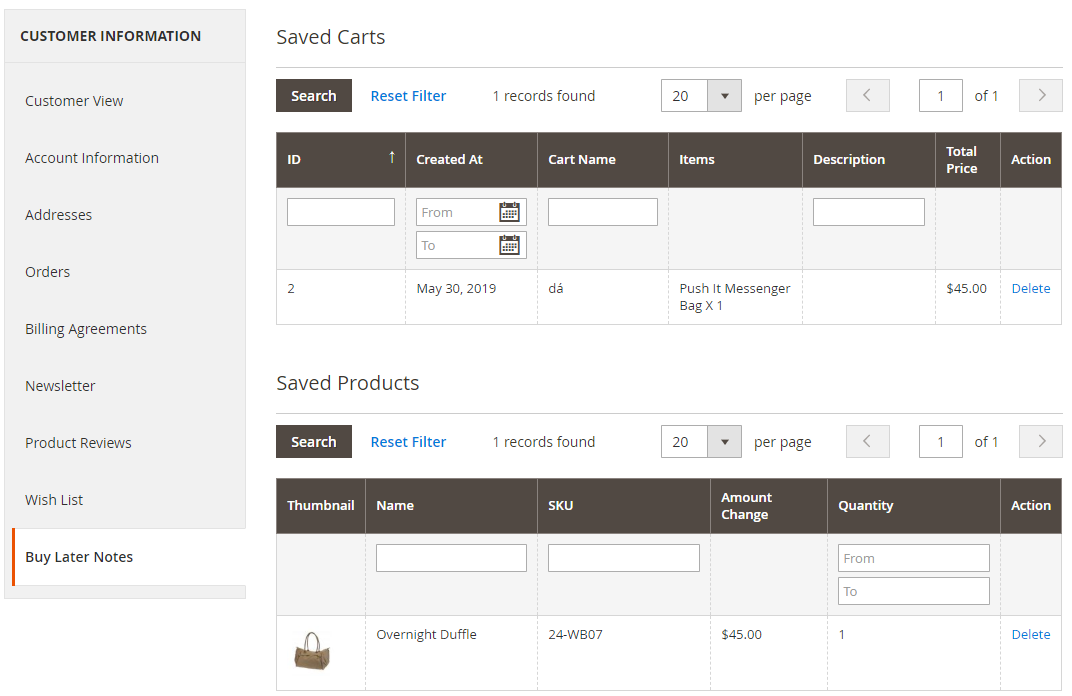
- Here, Admin will see 2 grids: Saved Carts and Saved Products
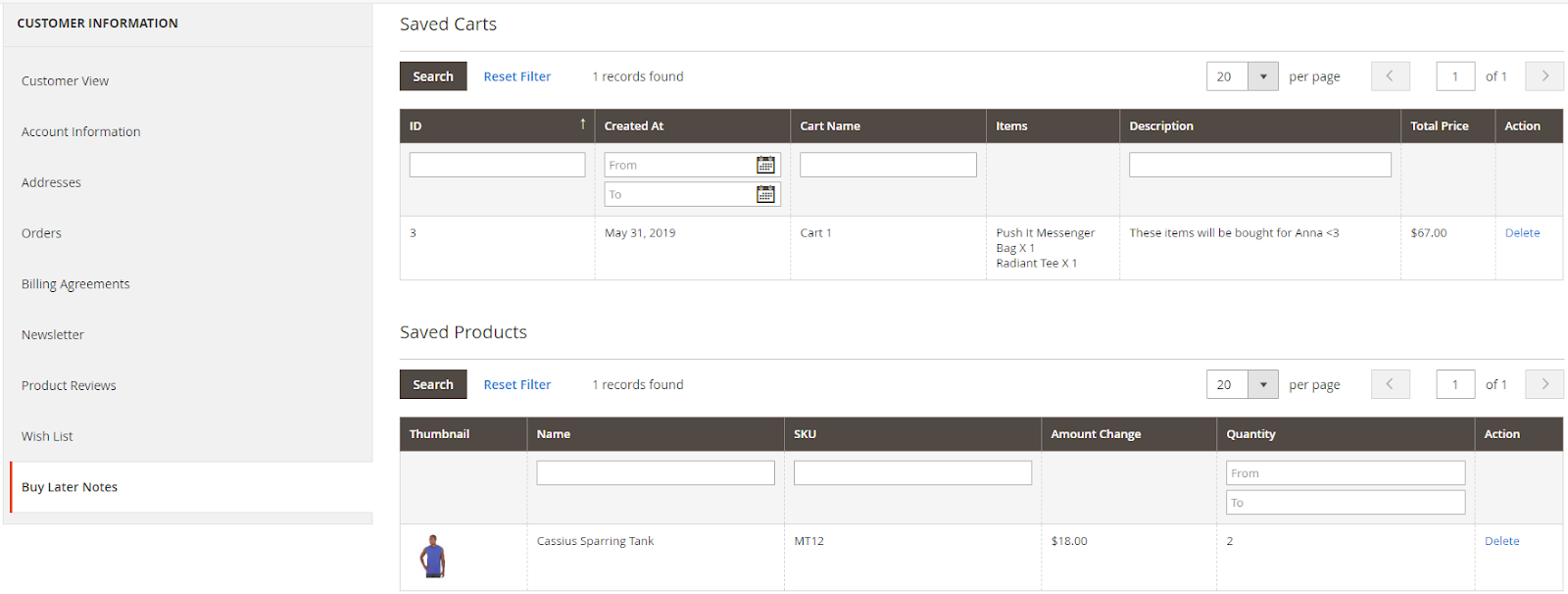
- In Saved Carts Grid, Admin can view all Saved Carts basic information such as Cart ID, Created Date, Cart Name, Item(s), Description, Total Price, Action.
- In the Action column, admin can delete any Saved Cart.
- In Saved Products Grid, customers can capture all basic information about Saved Products such as Image, Name, SKU, Amount Change, Quantity, Action.
- In the Action column, admin can delete any Saved Product.
3. REST API
Mageplaza Save Cart And Buy Later supports using REST API to perform requests such as admin can get information of configuration of Save Cart And Buy Later; customers can use requests related to Save Cart and Save Product sections.
View requests supports by Mageplaza Save Cart And Buy Later here
View REST API guidelines of Magento 2 here.. View create tokens guidelines here.
4. GraphQL
4. 1 How to install
Run the following command in Magento 2 root folder:
composer require mageplaza/module-save-cart-graphql
php bin/magento setup:upgrade
php bin/magento setup:static-content:deploy
Note: Magento 2 Save Cart GraphQL requires installing Mageplaza Save Cart in your Magento installation.
4.2. How to use
To perform GraphQL queries in Magento, please do the following requirements:
- Use Magento 2.3.x or higher. Set your site to developer mode
- Set GraphQL endpoint as
http://<magento2-server>/graphqlin url box, click Set endpoint. (e.g. http://dev.site.com/graphql) - To view the queries that the Mageplaza Save Cart GraphQL extension supports, click here
Frontend
1. Link to Dashboard
To use this feature, you are required to login to the store's Website.
1.1. Top Link

1.2. Footer Link

2. View Cart Page
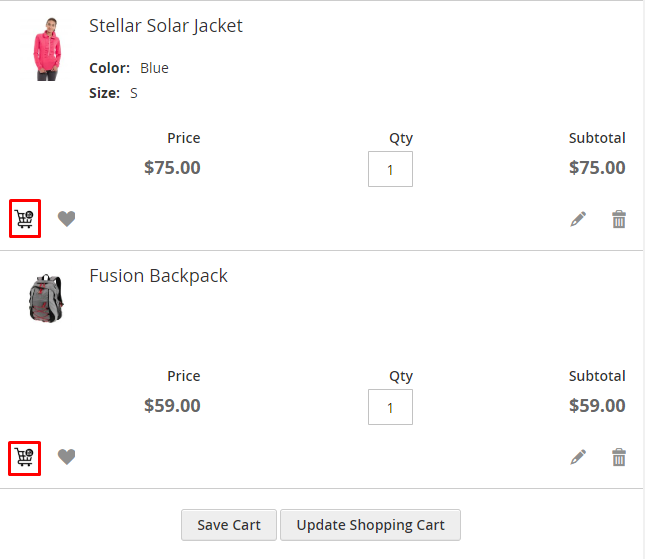
When customers want to come back next time to buy the product they are choosing, click on Buy Product Later, this product will be moved to Buy Later Notes Tab at Customer Dashboard
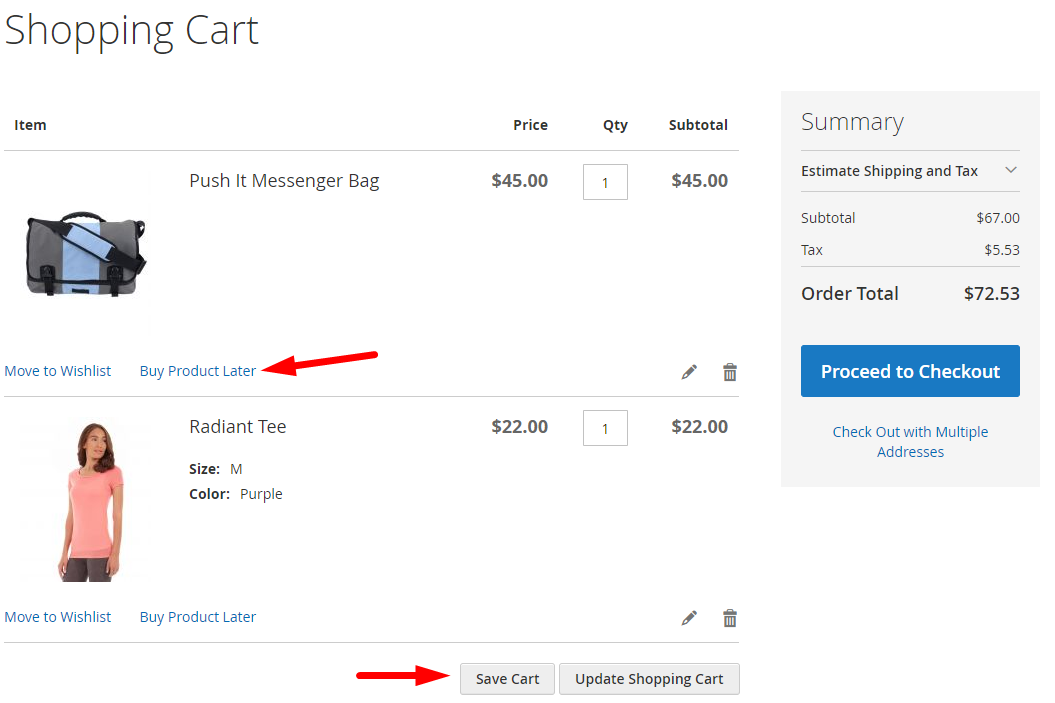
To save the cart, click the Save Cart button. After clicking, a Popup will appear so that you can enter the Cart Name and Description information for this Cart.
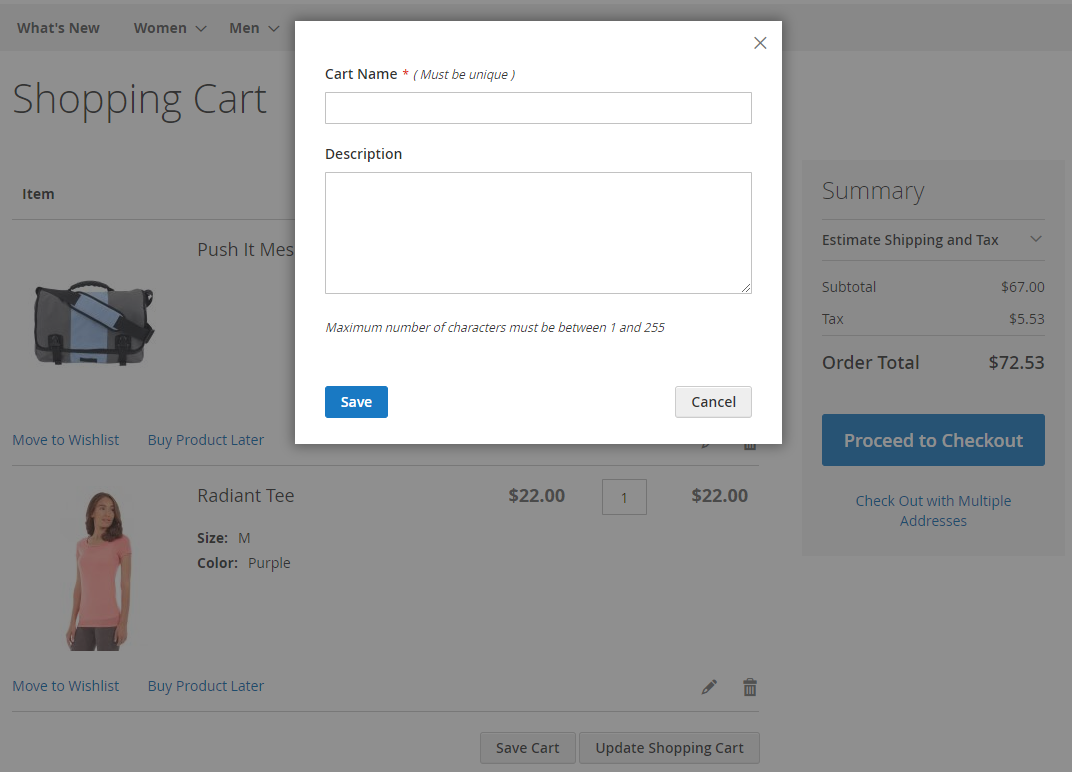
When clicking Save, you will be redirected to the Buy Later Notes page and successfully saved this Cart.
3. Buy Later Notes Tab
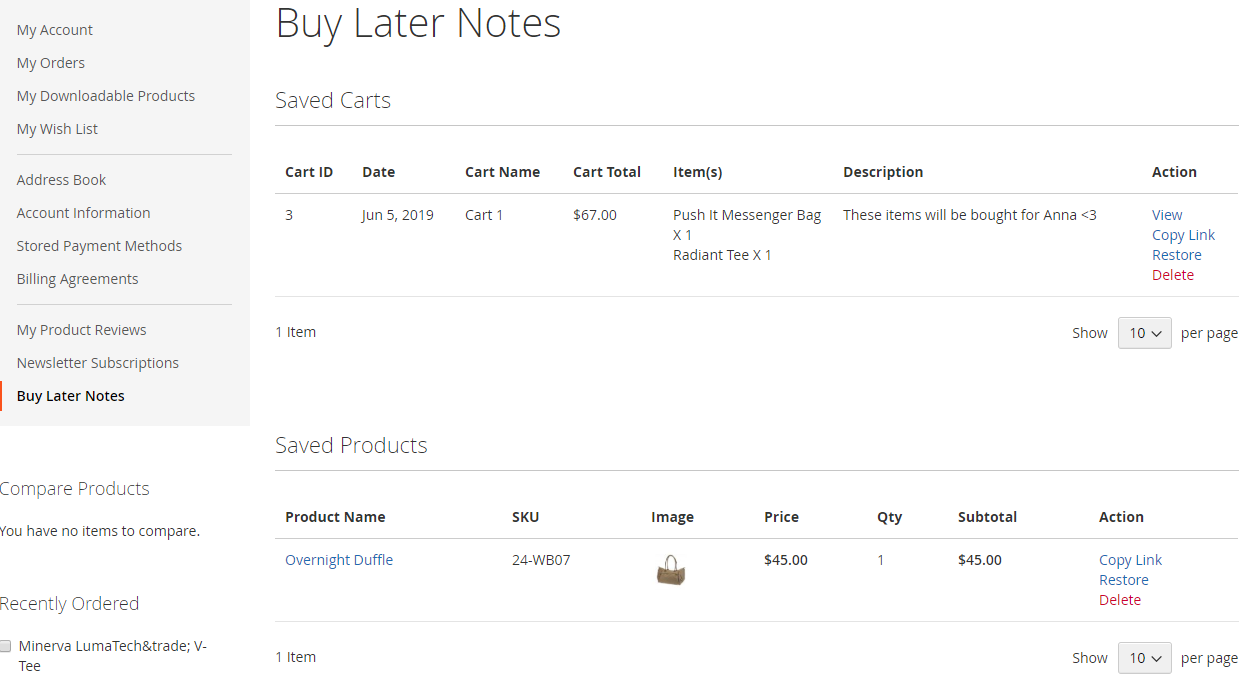
3.1. Saved Carts
- From Saved Carts tab, customers can capture all Saved Carts basic information such as Cart ID, Date, Cart’s Name, Cart Total, Item (s), Description, Action.
- In the Action column, customers can perform actions such as View, Share, Restore, Delete.
- Action View: Customers can view details of Buy Later Cart.
- Action Copy Link: Customers can copy the link and share Buy Later Cart for another person.
- Action Restore: Customers will transfer all Items in Saved Cart to the current Shopping Cart.
- Action Delete: Customers can delete Cart.
3.2. View Buy Later Carts

- From View Buy Later Cart Tab, customers can capture all the basic information about existing shopping cart products: Product Name, SKU, Image, Price, Quantity, Subtotal.
- In addition, right here, customers can perform 2 Actions, which are:
- Back: Return to the Buy Later Carts page originally
- Restore: Transfer all Items in Saved Cart to the current Shopping Cart.
3.3. Saved Products
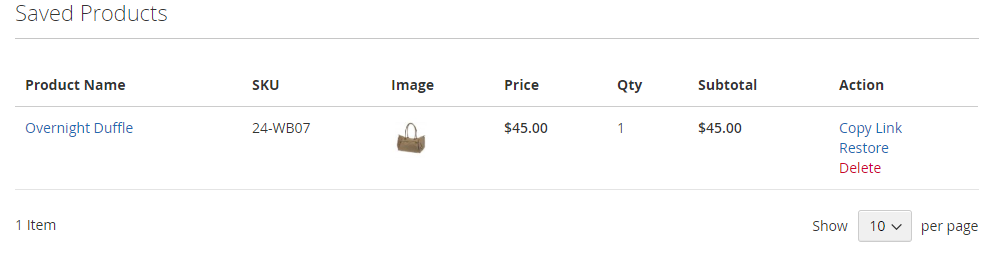
- From Buy Later Products tab, customers can capture all the basic information of Buy Later Products like: Product Name, SKU, Image, Price, Quantity, Subtotal, Action.
- In the Action column, customers can perform Actions: Share, Restore, Delete.
- Action Copy Link: Customers can copy the link and share this Saved Product to another person.
- Action Restore: Customers will transfer Items in the Saved Products to the current Shopping Cart.
- Action Delete: Customers can delete this Saved Product.